Payments
Payment links and SEPA (not in this release)
Payment links and SEPA direct debit are not included; customers pay by bank transfer and you record the payment by hand.
Availability
Online payment links and SEPA direct debit are not part of the current SoPasst release, not even in a higher plan. SoPasst does not collect money from your customers and does not create payment pages. Your customers pay by bank transfer to the bank details printed on every issued invoice and reminder. If an IBAN is stored, the PDF also carries a QR code for paying, which your customer scans with their banking app. The Payments & SEPA page only appears once this feature is switched on.
Keeping track of incoming payments
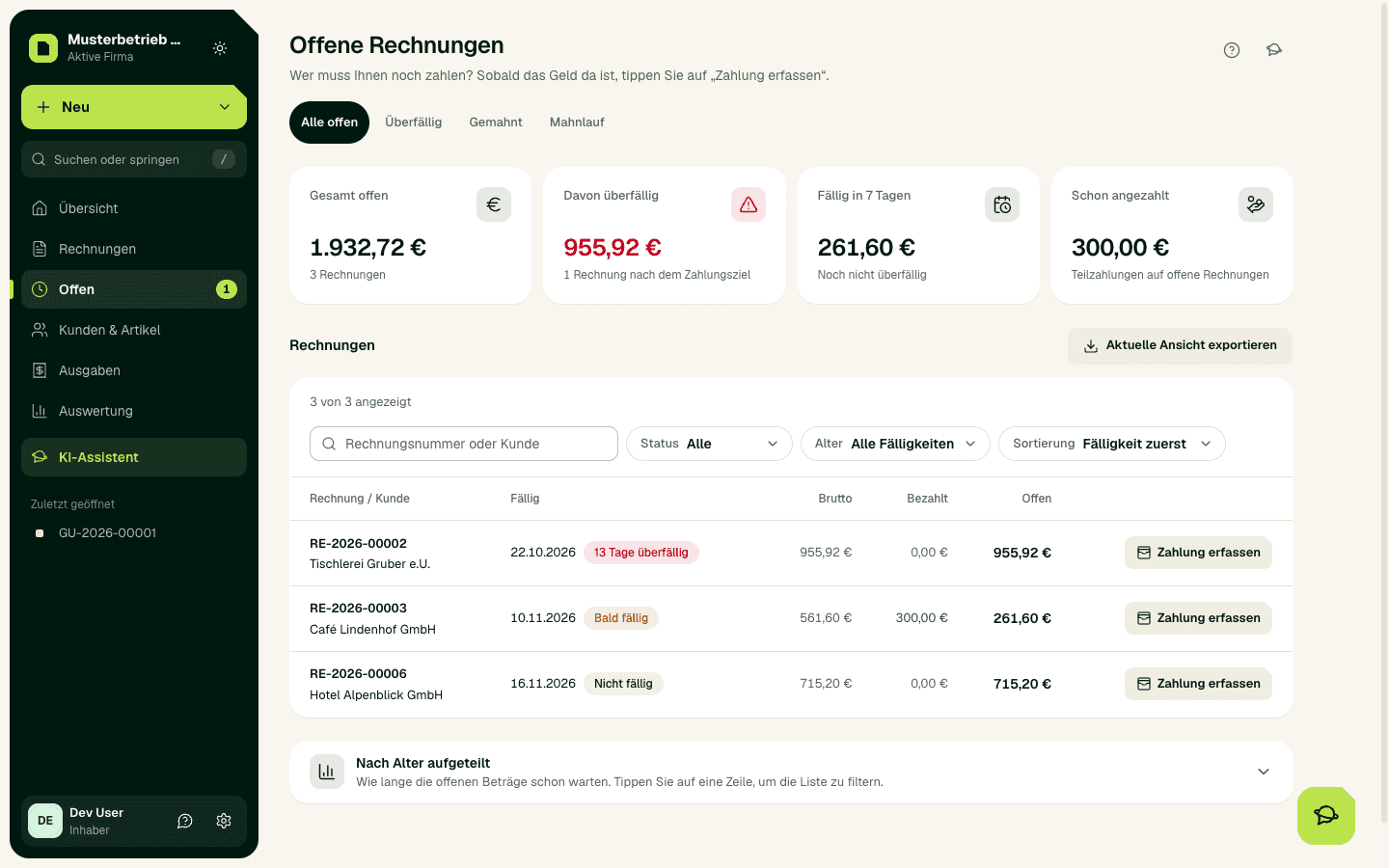
How you get your money today
- Enter IBAN and BIC under Settings › Bank & payments before you issue. An issued invoice does not get the QR code afterwards.
- Issue the invoice and send it.
- Check that the payment has arrived in your business account.
- Record the payment on the invoice with Record payment.
Important
Expected result
The recorded payment appears on the invoice and lowers its open amount. No payment link and no direct debit is created.
Common problems
If an invoice has no QR code, no IBAN was stored when it was issued. Add it for future invoices. Changing your plan does not unlock payment links or SEPA.
Continue safely
Compare the payment reference, date, invoice number and amount with your bank statement before you record a payment. If anything is unclear, contact support.