Payments
Unpaid invoices and reminders
Check due invoices, record payments and prepare reminders with care.
Check unpaid invoices
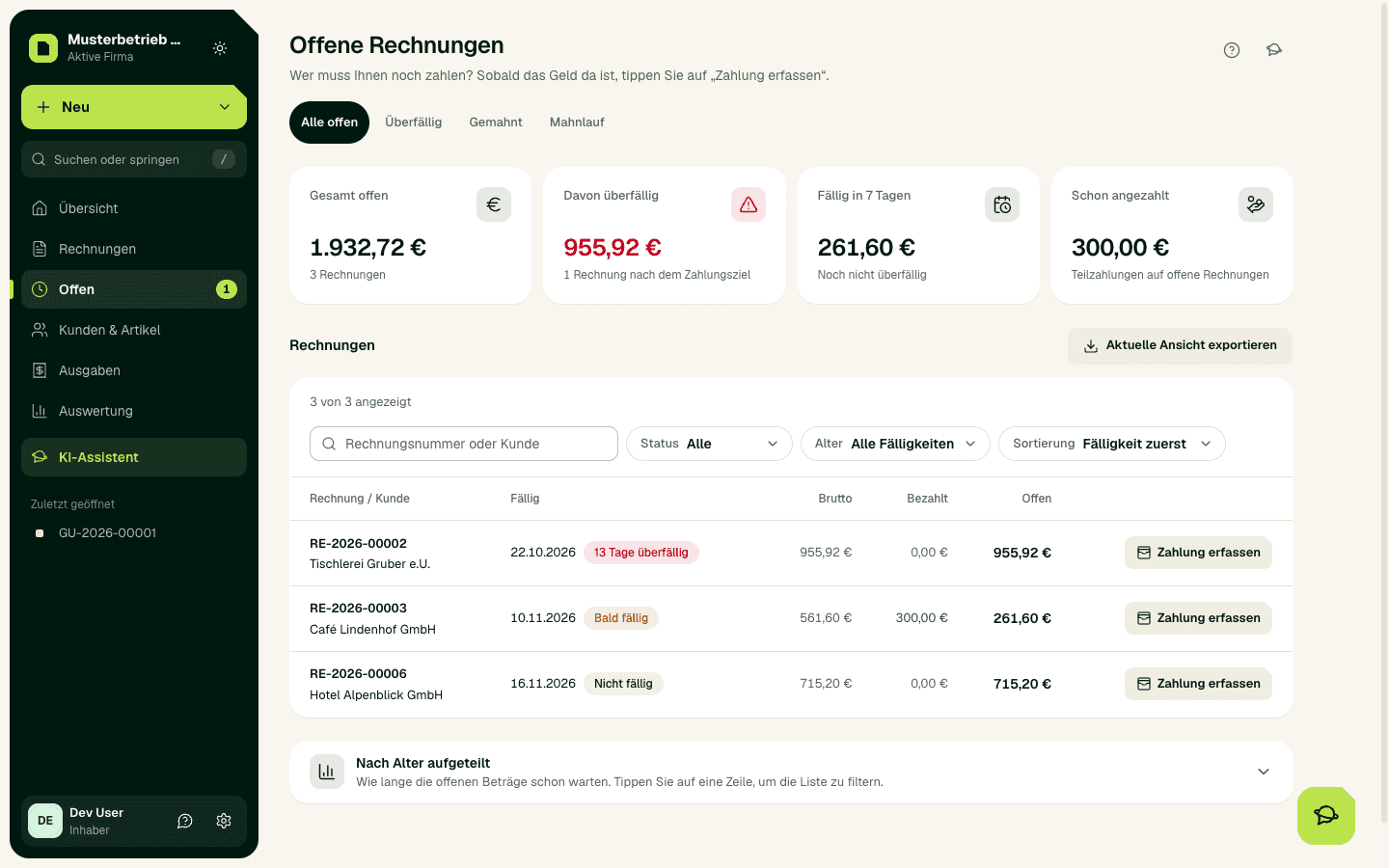
In the sidebar, open Open; the page is called Unpaid invoices. Under All unpaid you see issued invoices that are not fully paid yet, with due date, gross, paid and open amount. Unpaid invoices › Overdue shows only invoices whose payment term has passed. With Export current view you download the list as a CSV file.
Record a payment
To remove a payment recorded by mistake, choose Undo in the invoice's Payments area, give a reason and confirm with Remove payment.
- In the list, choose Record payment, or open the invoice.
- In the Payments area, check the invoice amount and earlier payments.
- Enter amount, payment date and method. If the invoice has a cash discount (Skonto), choose Close with cash discount when it applies.
- Save with Save payment and check the open amount.
Prepare a reminder
Under Unpaid invoices › Reminder run you find all overdue invoices. Choose Select all due and then the button with the number, for example Prepare 3 reminders. Or remind one by one with Prepare payment reminder or Create reminder. Under Unpaid invoices › Reminded you see overdue invoices you have already reminded.
Rule of thumb: Several invoices overdue → Reminder run. Only one invoice → right in the invoice. The button already shows which level is next.
- The levels are payment reminder, then 1st, 2nd and 3rd reminder.
- SoPasst calculates statutory default interest itself: 4 % a year for private customers, and 9.2 percentage points above the base rate for businesses. For businesses SoPasst suggests a flat fee of €40 once per invoice.
- A reminder run only creates drafts. You issue and send each reminder yourself; under Settings › Email delivery, reminders can go out automatically after issuing.
- Under Settings › Taxes you set how many days after the due date an invoice appears in the reminder run.
Important
Withdraw a reminder
If a reminder went out by mistake, for example because the customer had already paid, withdraw it.
The reminder stays stored with its number and PDF but no longer counts: no dunning level, no fees, no interest. If there is a later reminder for the same invoice, withdraw that one first. If fees or interest have already been paid, first take back that payment with Undo. Withdrawing cannot be undone.
- Open the reminder under Invoices › Reminders.
- Choose More options › Withdraw reminder.
- Enter a reason and decide whether the customer is told by e-mail.
- Check the details and confirm with Withdraw reminder.
Write off a remainder
If a customer will not pay the rest, for example a small difference or after an insolvency, write it off. No payment is recorded.
Rule of thumb: The customer simply will not pay any more (insolvency, small difference) → Write off remainder. You lowered the price afterwards (discount, complaint) → Create credit note.
The invoice then shows as "Paid (remainder written off)" and is no longer dunned. The amount is not income; under accrual-basis VAT (Soll) it lowers the USt in the month of the write-off (§ 16 Abs 3 UStG). If the customer pays after all, take back the write-off in the Payments area with Undo. An instalment invoice is not written off; its remainder is settled with the final invoice.
- Open the invoice, for example under Unpaid invoices › All unpaid.
- In the Payments area, choose Write off remainder.
- Enter the date and a reason and confirm.
Expected result
A saved payment lowers the open amount. An issued reminder shows the invoice it refers to, its level, the payment deadline and the open amount including fees and interest.
Common problems
If a customer paid twice or too much, record only the open amount; Record payment does not accept more. Transfer the rest back to the customer. You do not need a credit note for this, because the invoice itself was correct.
A wrong payment amount, unclear bank transactions or an invoice that is not yet due can block the next step or make it wrong. Fees higher than the flat fee need a reason.
Continue safely
Open the invoice, compare the payment history with the open amount and fix the cause. Do not repeat a payment or reminder while the outcome of the previous one is unclear.