Master data
Manage customers and suppliers
Enter contact details cleanly, check, edit and archive them.
Add a customer
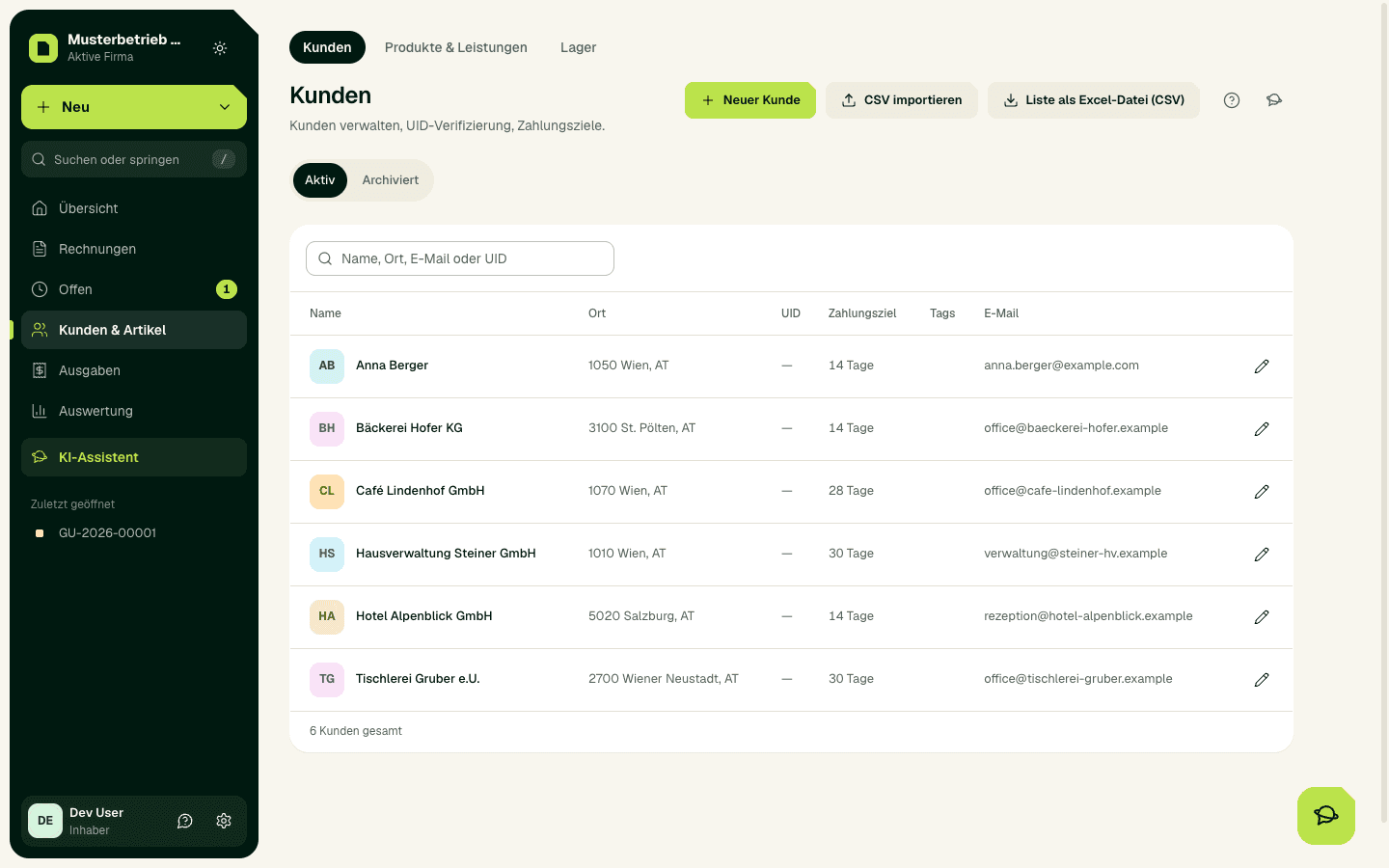
- In the sidebar, open Customers & items; the page shows your customers first.
- Choose New customer.
- Enter name, address, country and email.
- Choose the customer type: Private person or Business. If needed, add UID number, Firmenbuchnummer (company register number, for your records only; it does not appear on invoices), payment terms, language, internal note and tags.
- Save with Create customer.
Customer type and UID
The customer type decides the reminder: private persons pay 4 % default interest, businesses the base rate plus 9.2 percentage points and a one-off €40 flat fee. For businesses, an invoice over €10,000 shows the customer's UID. After saving, check the UID in the EU register (VIES) with Check VAT ID now. If a business in another EU country has a UID, the invoice preselects reverse charge. If a contact shows “Check UID”, its stored UID is invalid, usually from an import. Ask the customer and correct it: reverse charge and intra-EU supplies need a valid UID.
Check the UID automatically
As soon as you type a UID for a customer, SoPasst asks the EU register VIES of the European Commission. You need no sign-up and no setup.
- You see “UID valid according to the EU register (VIES)” and the name and address as the member state reports them. An invalid UID shows a clear message.
- Only with Use name and address do you fill in name, full company name, street, postcode, city and country. Without that click SoPasst changes nothing. Give what was filled in a quick look.
- Some member states, for example Germany, report neither name nor address. You then see only “valid”; that the UID belongs to exactly this firm is not confirmed.
- When you save, SoPasst checks again and keeps the result on the customer as evidence: valid or invalid, the date, and name and address according to the register. The customer card shows “Checked on …” and “According to the EU register: …”. Compare name and address with your own data.
- SoPasst stores a consultation number only if your own UID is checked as valid under Settings › Taxes with Check saved VAT ID via VIES. The request then runs under your UID and VIES returns the consultation number. Without a checked UID of your own there is none.
- If VIES cannot be reached, the UID stays “Not checked yet”. SoPasst does not guess. With Check VAT ID now on the customer card you check again later, an older check as well.
Own prices and discount
- In the customer form, set a Discount for this customer under Payment. It applies to catalog items without an own price.
- On the customer, under Prices, store an own net price or a discount per item, optionally from a day on. It comes before the general discount and the list price.
- When you pick a catalog item on a document, SoPasst uses this price. If you change the customer afterwards, SoPasst asks whether to update the prices. You can change every line by hand.
Different delivery address
If the goods go to another address than the invoice, for example to a building site or a warehouse of the customer, enter recipient, street, postcode, city and country in the customer form under Different delivery address. Leave the field empty if you deliver to the billing address.
- New quotes, order confirmations, delivery notes and invoices for this customer take over the delivery address automatically.
- In the document you change it under Different delivery address for this document only, or remove it with Remove delivery address.
- When you take a document further (quote to order confirmation, order confirmation to delivery note, delivery note to invoice), it is kept.
- On the PDF the delivery address appears as a block of its own if it differs from the billing address; on the delivery note it is the main address. Once issued, it is fixed like the rest of the document.
Add a supplier
You find suppliers in the sidebar under Expenses › Suppliers, with the button New supplier. Enter the companies you buy from there. You then link expenses and purchase orders to the supplier and see them on its detail page.
Check before you use it
- Use the legal name of your business partner.
- Check the country and postcode.
- Reminders only go to email addresses stored for the customer. You add more addresses under Registered delivery addresses.
- Do not write sensitive information in the internal note.
Edit and archive
You can change contact details at any time; new documents then use the new details. If you no longer need a contact, archive it. Under Archived it stays visible and can be restored. You can also import customers and suppliers from a CSV file, and export customers. The import skips contacts with the same name or UID as already present; it keeps an invalid UID and marks it “Check UID”.
Important
Expected result
After saving, the business partner is in the list and can be opened. An archived contact is missing from the selection in new documents; its history stays.
Common problems
A missing name, an incomplete address or a newly entered invalid UID prevent saving. An invalid UID that is already stored does not block other changes, but reverse charge stays blocked until it is correct. A filter or the Archived tab can hide a saved entry.
Carry on safely
Correct the highlighted detail and then check the filters and the Archived tab. Do not create a duplicate record before you have checked the search and archived entries.