Automation
AI assistant and approvals
Ask questions, extract documents and have drafts prepared; every proposal waits for your approval.
Overview
The AI assistant in SoPasst answers questions about your company and prepares drafts. It does not carry anything out on its own: every proposal waits for your approval, and even then only a draft is created.
What the assistant does for you
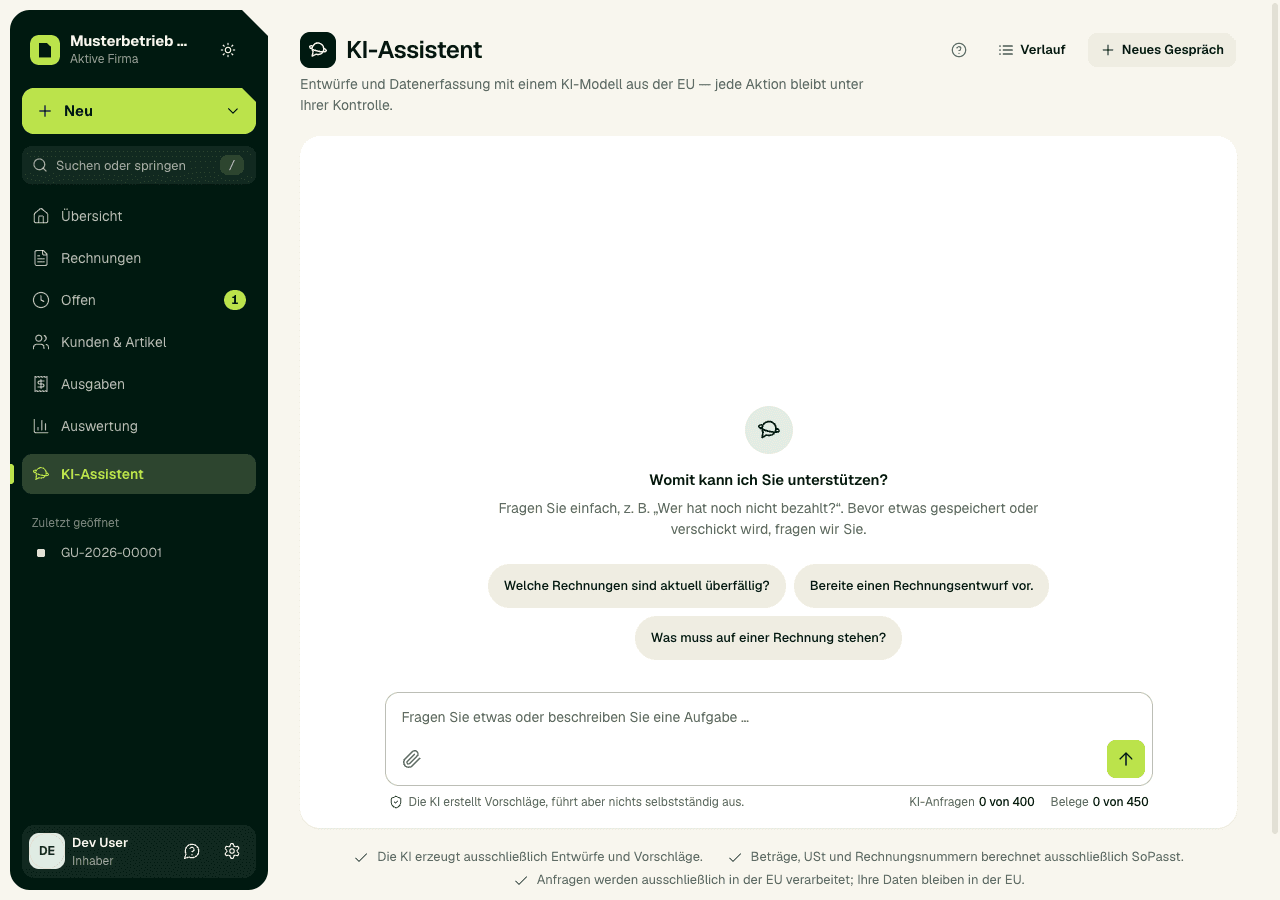
- Answer questions, for example which invoices are open or overdue, how high revenue and USt are for a period, or whether the Kleinunternehmer limit has been reached. The figures come from your SoPasst data, with a link to the page where you can check them.
- Prepare an invoice draft when you name the customer, the line items with quantity and net price, and the tax rate.
- Extract a document: under “Extract document” you upload a PDF or photo, and the assistant turns it into an expense draft.
- Write an e-mail or a payment reminder to a customer.
- In Stern and Galaxie: prepare an invoice or a quote from a voice recording (see below).
Approve a proposal
- Open AI assistant in the sidebar and describe the task. Send it with “Send” or the Enter key; Shift + Enter starts a new line.
- The proposal appears as a card marked “Confirmation required”. Check customer, line items, amounts, USt and payment terms; notes below the preview tell you what SoPasst did not take over.
- Choose “Approve” or “Reject”.
- After approval SoPasst creates the draft. An invoice stays a draft without a number until you issue it yourself; an e-mail is not sent until you send it yourself.
Important
Speak an invoice or quote
In the Stern and Galaxie plans you speak a draft instead of typing it.
A price you do not say is taken from your product catalogue, or the line is marked “Price missing”; nothing is made up. If SoPasst did not clearly understand the customer, it asks “Which customer?” and you pick one with a tap. The recording itself is not stored; the recognised text stays in the assistant's history as your message. Each voice draft counts as a voice draft and as one AI request; the amounts are under Plans, billing and usage limits.
- In the AI assistant choose “Speak an invoice or quote”. On a new, still empty invoice or quote you find “Fill in by voice” right in the form.
- The first time, allow microphone access in your browser. Say the document type, customer, line items and prices, for example: “Quote for Huber, three hours of installation at 65 euros, material 240 euros.” A recording lasts at most 3 minutes.
- Choose “Stop recording”. SoPasst shows what it heard and the draft with a PDF preview.
- Check the draft and choose “Save draft” or “Speak again”.
Who can use the assistant
- Owners, admins and employees ask the assistant and approve proposals. The role Tax adviser / bookkeeping only asks; the assistant prepares no drafts for them.
- Viewers do not see the assistant: every request uses the company's AI quota.
- Owners and admins switch the AI off for the whole company under Settings › AI features. You then enter everything by hand; SoPasst still reads e-invoices without AI.
Keep an eye on your quota
Below the assistant's input field you see how many AI requests and documents you have left this month. Every message counts as one AI request, every extracted document of up to 3 pages as one document. When a quota is used up, only the AI pauses; everything else keeps working. Amounts and daily limits are described under Plans, billing and usage limits.
Safe input
- Do not enter passwords, one-time codes or API keys.
- Do not paste in unchecked customer data from outside sources.
- Do not approve a proposal just because it sounds plausible.
AI assistant and agent access
The AI assistant is built into SoPasst. You connect an external AI assistant through agent access; owners and admins check its proposals under AI assistant › Approve, and what was carried out is listed under AI assistant › History. The guide for this is Connect AI assistants (MCP).
Expected result
After approval the draft is in SoPasst, for example under Invoices & quotes or Expenses; SoPasst opens it right after the approval. Nothing has been issued, sent or booked yet.
Common problems
- “Your plan's AI requests for this month are used up”: it continues on the 1st of the next month. Before that, the owner can buy an AI extra pack or change the plan.
- “The microphone is blocked”: allow microphone access for SoPasst in your browser settings and try again.
- The assistant asks a follow-up question: customer, line items or tax rate were not clear. Add the detail in a new message.
- “Daily limit for AI requests reached”: it continues the next day. Your question stays in the input field.
Continue safely
If a proposal does not fit, choose “Reject” and describe the task again. A draft that has already been created can be changed or deleted like any other draft; it has no number yet.