Automation
API and webhooks
Connect your software, Zapier, Make or n8n with an API key, choose rights, repeat changes safely and set up webhooks.
6 min readLast reviewed: 13.10.2026
Open in SoPasstOverview
With the SoPasst API you connect your own software, your web shop or tools such as Zapier, Make and n8n to your company in SoPasst. Webhooks tell your application right away when a document is issued or sent, or a payment is recorded.
Requirements
- Planet, Stern or Galaxie plan with an active subscription (the trial counts too). The Komet plan does not include the API.
- You are the owner or an admin of the company. Other roles do not see the Settings › AI assistants & API › API page.
- For issuing, sending and payments: you are the owner and have set up two-step sign-in under Settings › Security.
Create a key
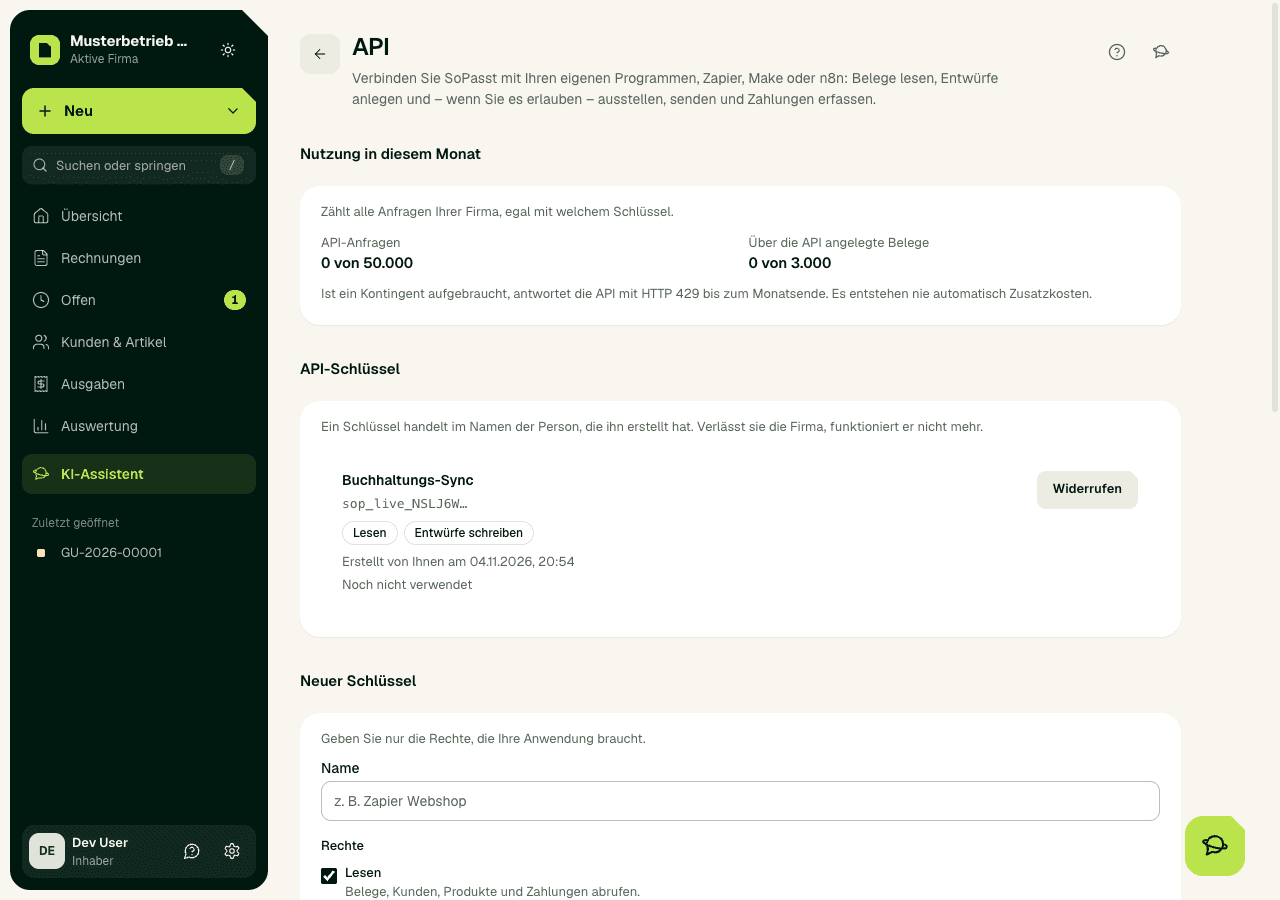
- Open Settings › AI assistants & API › API.
- Under “New key”, enter a name, for example “Zapier web shop”, and tick only the rights your application needs.
- Choose “Create key” and then “Copy”. The key starts with sop_live_ and is shown only this once.
- Enter the key in your application as a bearer token: header Authorization, value “Bearer ” followed by the key.
Important
What a key may do
- Read: fetch documents with their PDF, customers, products and payments.
- Write drafts: create and change customers and products, and create and change drafts of quotes, order confirmations, delivery notes, invoices and credit notes (Gutschriften). A draft does not have an invoice number yet.
- Issue: issue a draft (invoice, quote, order confirmation, delivery note). SoPasst checks the mandatory details, assigns the next gapless number, stores the PDF and locks the document.
- Send: e-mail an issued document to an address stored for the customer, with your template or your own text.
- Record payments: book incoming payments against invoices, with the same rules as the payment form in the app.
- Only the owner grants issue, send and payments, once, when creating the key, with the code from the authenticator app. After that SoPasst does not ask again on every call. You issue credit notes, Stornos and Mahnungen in the app only.
Your first request
- The API address is https://app.sopasst.at/api/v1. The description of every endpoint is at https://app.sopasst.at/api/v1/openapi.json; Zapier, Make, n8n and Postman can read it directly.
- Check the key with GET /api/v1/me. The answer lists the key's rights, your plan and the usage this month and today.
- Amounts are always whole cents in euros, dates have the form YYYY-MM-DD. Every change is a POST request with JSON.
Repeat changes safely
- Every POST request needs the Idempotency-Key header with a unique value, for example a UUID. Without it the API answers idempotency_key_required.
- If your application sends the same request with the same value again within 24 hours, for example after a dropped connection, SoPasst answers with the stored result and the idempotent-replayed header. An invoice is never issued twice and a payment never booked twice.
- The same value with a different body is refused with idempotency_key_reused. Use a new value for every new change.
- If a request fails, nothing is stored and no invoice number is used up. After fixing it you can use the same value again.
Set up webhooks
- Open Settings › AI assistants & API › API and enter your application's address under Webhooks. Only https addresses on port 443 with a public host name are allowed.
- Choose the events: document.issued (also Storno and Mahnung), document.sent and payment.recorded. Choose “Add webhook”.
- Copy the signing secret shown (whsec_…). It is shown only once.
- Check every message in your application: the headers webhook-id, webhook-timestamp and webhook-signature follow the “Standard Webhooks” standard; many libraries check the signature in one line.
Important
Expected result
Your application gets answers in JSON: a created draft appears in SoPasst right away, an issued document has its final number and its PDF, and every webhook reaches your address with a valid signature. Settings › AI assistants & API › API shows this month's usage, when each key was last used and the delivery log of the last 20 webhooks.
Common problems
- Monthly quota: Planet 5,000 requests and 300 documents created through the API, Stern 50,000 and 3,000, Galaxie 500,000 and 10,000. Every request counts, including one that fails.
- Per key and minute: Planet 60, Stern 120, Galaxie 300 requests. Issuing, sending and payments also have a daily limit; GET /api/v1/me shows it.
- When a quota is reached, the API answers with HTTP 429 and states in the Retry-After header when it continues. There are never any automatic extra costs.
- Every error has a fixed code, for example unauthorized (key missing or revoked), insufficient_scope (right missing), validation_failed (for example missing mandatory details) or quota_exceeded. When you contact support, quote the value of the x-request-id header, never the key.
Continue safely
- Open Settings › AI assistants & API › API.
- For the key choose “Revoke” and then “Revoke key”, or for the webhook “Remove” and then “Remove webhook”.
- Access ends at once and cannot be restored. Create a new key if you need one. Revoking and removing also work while the subscription is locked.