Communication
Email and document delivery
Check sender, recipient, message and attachment before every send.
Set up the sender
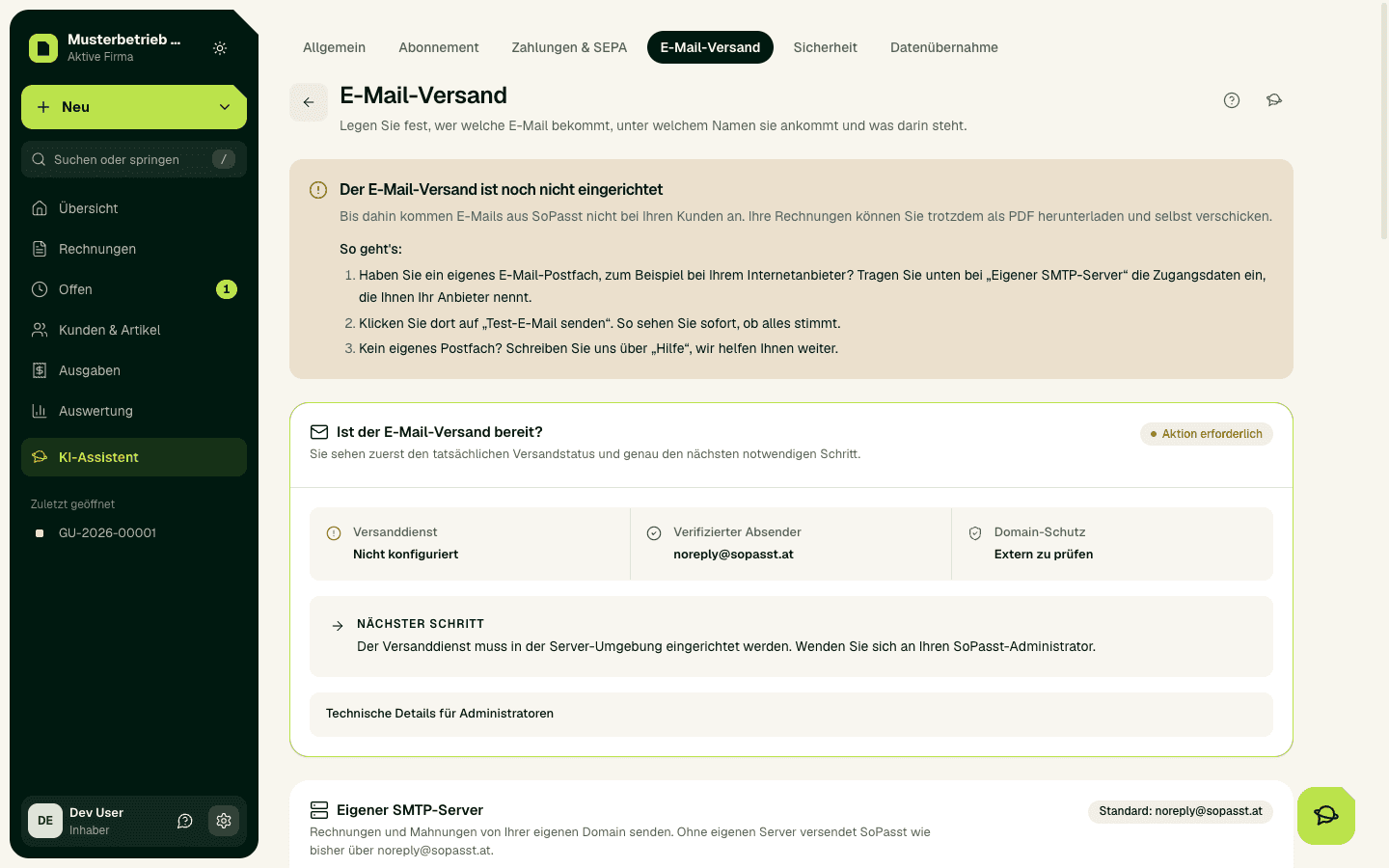
Open Settings › Email delivery. Under Sender & automation you set the sender display name and, if you like, a reply-to address. Under Document templates you find the subject and introduction for each document type and language. Under Signature you set, per language, a closing that goes below every email to your customers (text only, at most 15 lines and 1,000 characters); without a signature the email ends with “Best regards” and your company name. With Automatically send documents after issue, an email goes to the stored address as soon as you issue a document; the issue dialog tells you beforehand whether it will be sent and to whom. Reminders have their own switch: Automatically send reminders after issue.
If you want to send from your own domain, enter server, port, user name, password and sender address under Your own SMTP server. Then send a test email: only once it arrives do invoices and reminders go out through your server. Until then SoPasst sends from the standard address.
Send a document
- Open the issued document and choose Send. Right after issuing, Send also appears in the green success box if no email has gone out yet.
- Under To, check the recipient address. You can only choose the addresses stored for the customer, or for a purchase order the supplier's address.
- Choose the language. The subject and message come from your template, and you can change them for this one email.
- Under Document, choose whether the PDF is attached – the file name is shown – or whether only a secure, time-limited link is sent. Every email contains such a link.
- Read the email preview on the right-hand side.
- Choose Send now to ….
Read the delivery status
The head of the document then shows, for example, “Sent on 02.10.2026, 10:15 to customer@example.at”. Sent means: the sending service accepted the message. SoPasst does not show whether it was delivered or read. Other messages are “Sending … failed”, “is being delivered”, “Scheduled for …” (reminders) and “Not delivered: email delivery is not set up yet”.
Important
Expected result
After sending, the document shows the date, time and recipient address of the email. Recipient, subject, message and attachment match the preview you confirmed.
Common problems
If no email address is stored for the customer, you cannot send – add the address to the customer details. If the PDF is too large for an attachment, only the secure link is sent, automatically. Per day SoPasst sends at most 150 document emails on the Komet plan, 500 on Planet, 1,500 on Stern and 3,000 on Galaxie, and 50 during the trial. When the limit is reached, sending pauses until midnight; you can keep issuing documents. If sending through your own SMTP server fails, SoPasst tries again and shows the reason under Settings › Email delivery.
If a customer says the invoice never arrived: the head of the invoice shows when and to which address it was sent. If the address is wrong, correct it in the customer details. Ask the customer to check their spam folder and send the invoice again with More options › Send again; you can also download the PDF and pass it on yourself. If your emails often land in spam, send from your own domain (Your own SMTP server, see Set up the sender).
Carry on safely
First check the delivery status in the head of the document. If it says “Sent”, you do not need to send it a second time; Send again points this out to you before a second email goes out. If sending failed, correct the address and send again – the failed attempt will then no longer be retried.