Documents
Set up recurring invoices
Keep control of templates and billing intervals for services that repeat regularly.
When it fits
An invoice that goes out automatically every month (or weekly, quarterly, yearly) is set up as a recurring invoice. Recurring invoices fit services that repeat on a fixed schedule, for example maintenance, support or ongoing rent. Like a subscription, SoPasst issues the invoice on every due date and e-mails it to the customer.
Set up the template
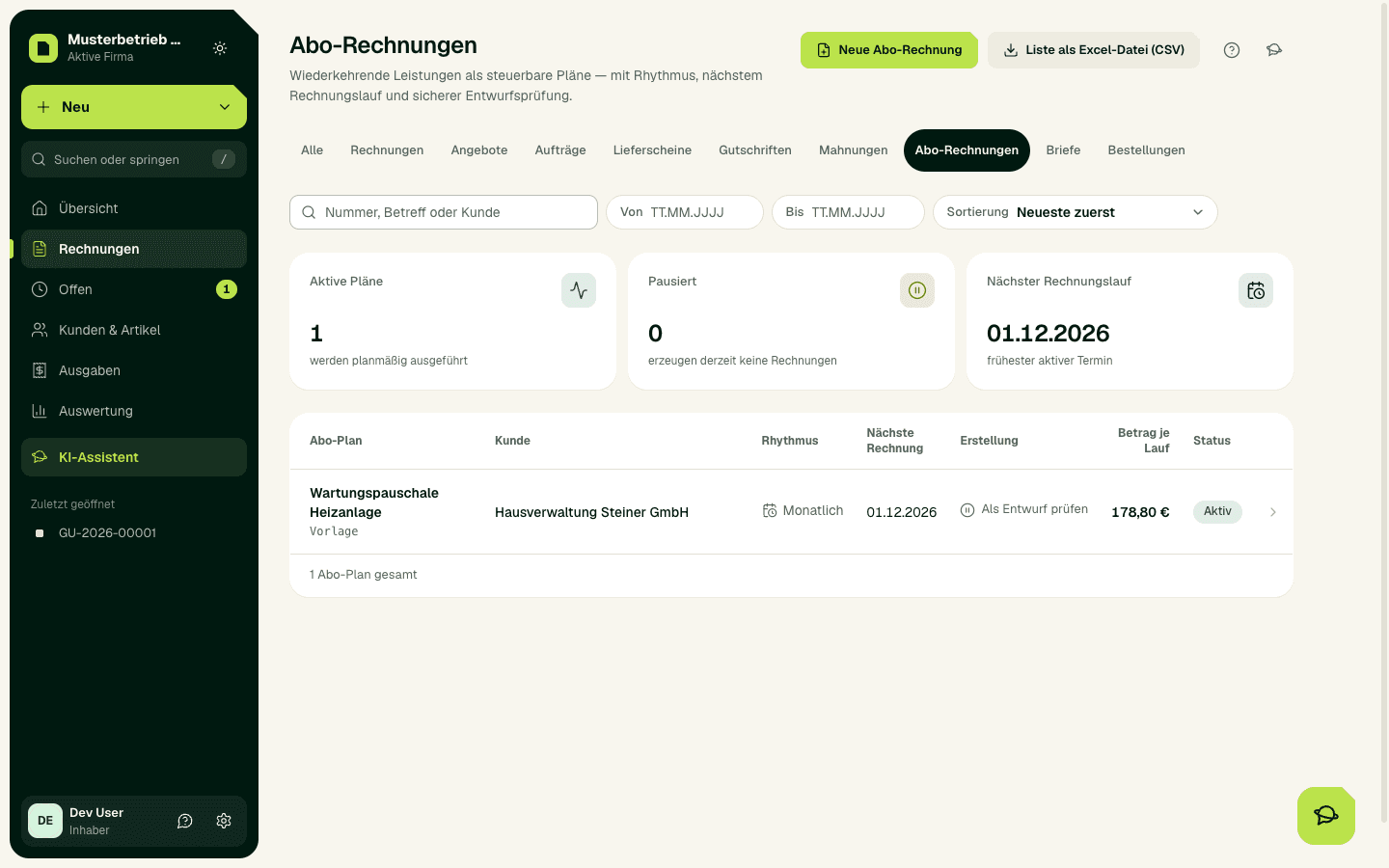
- In the sidebar open Invoices, pick Recurring invoices in the document type selector and choose New recurring invoice.
- Choose customer, line items and payment terms and choose Save & configure plan. Make sure the customer has an e-mail address.
- In the recurring plan, choose the cadence (weekly, monthly, quarterly or yearly), the First run and, if you like, an end date.
- Choose what happens on each date: Issue and send automatically (the default) issues the invoice and e-mails it with the PDF to the customer's address, using your e-mail template. Manual: draft for review only creates an invoice draft, which you issue and send yourself.
- Choose Activate recurring plan. The plan then shows the next run.
Ongoing checks
- Check changes to prices and contracts before the next run.
- Pause, resume or end a plan in good time, or switch it to Manual with Edit plan.
- Check the drafts and invoices it creates regularly.
- If a recurring invoice could not be sent (no e-mail address, your plan's daily limit reached, sending on hold), it stays issued. The recurring plan lists it with the reason; SoPasst tries again on every run for up to 7 days, after that you send it with Send. An invoice is never sent automatically twice.
Important
Expected result
The active plan shows cadence, next run, status and the chosen setting. On the due date an issued and sent invoice or a draft is created that refers to the template.
Common problems
Without a customer or a line item, the plan cannot be activated. A paused or ended plan creates no invoices. If the customer has no e-mail address, the invoice is issued, but it is only sent automatically if you add the address within 7 days. After that, send it yourself with Send. A recurring template has no PDF preview of its own; check the first invoice it creates.
Carry on safely
Check the template, the next run and the last invoice it created. Activating again ends the existing plan and replaces it; it is better to change it with Edit plan.