Accounting
Record expenses and cash movements
Document business expenses and cash movements with a link to their receipts.
Record an expense
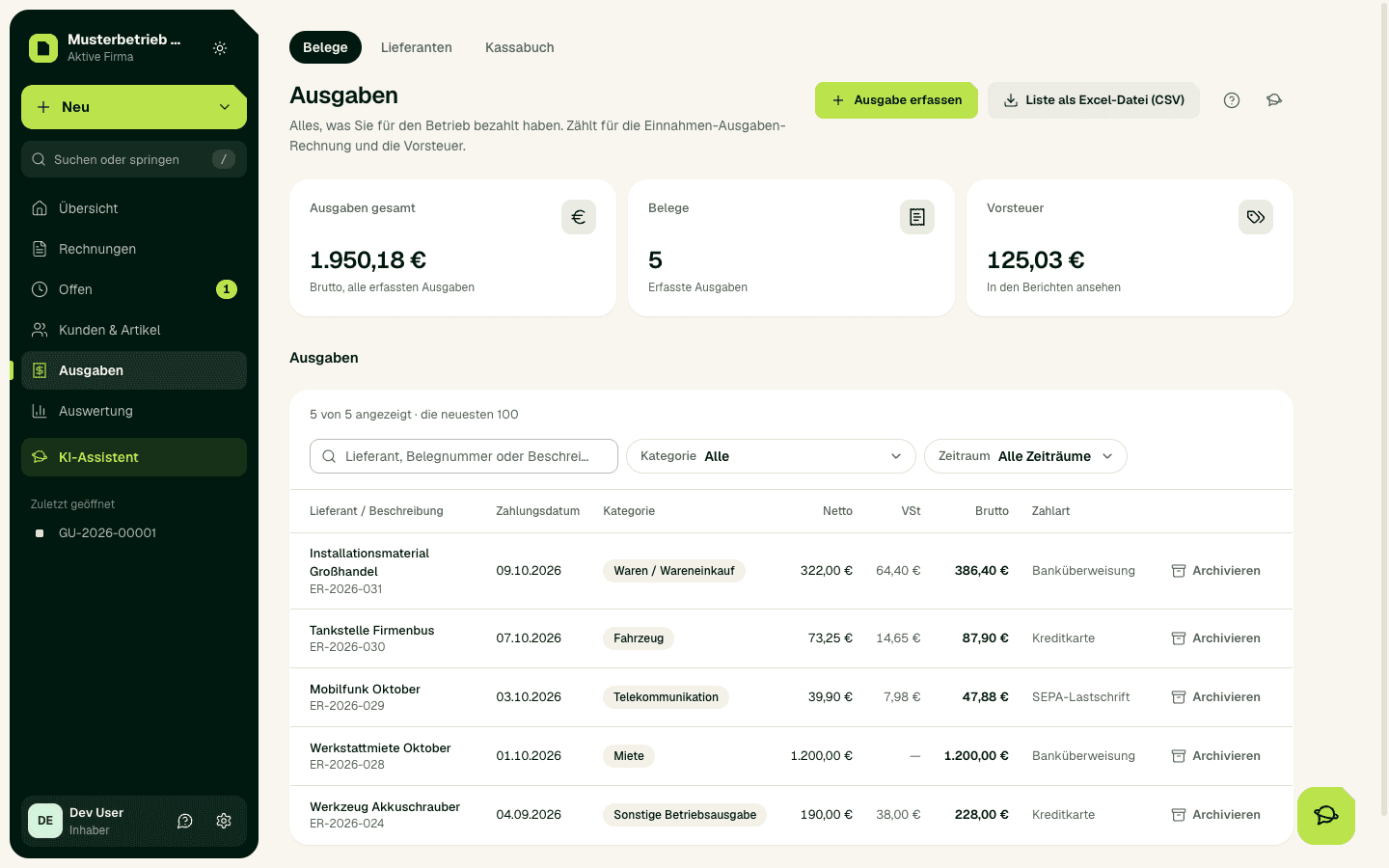
- In the sidebar, open Expenses and choose Record expense.
- With Scan receipt you photograph the receipt or upload a photo or PDF. SoPasst reads the details with AI and creates a draft for you to check. You can also read in an e-invoice there without AI. On a phone or tablet, open SoPasst in the browser: under Expenses, Photograph receipt opens the camera directly.
- Without a scan, fill in the form: supplier, receipt number, payment date, gross amount and VAT rate.
- Choose the category and the payment method (Method), and add a description if you like. If you have set up accounts or cards under Settings › Payment accounts & cards, the field is called Paid with; a card fills in its usual category. SoPasst shows net, input VAT (Vorsteuer) and gross.
- Save with Save expense.
Receipts by e-mail
SoPasst reads incoming invoices that arrive by e-mail automatically from your mailbox. Connect a mailbox of your own, ideally one used only for invoices (for example invoices@your-company.at). SoPasst reads it and creates an expense draft from each attachment. A general inbox also sends newsletters and private attachments to review.
During the trial one mailbox is free. After it each mailbox costs €7 net per month (yearly €70) on every plan; without a booking, reading pauses.
- Open Expenses and choose Receipts by e-mail at the top. Owners and admins choose Connect mailbox.
- Enter IMAP server, port (993 or 143), user name, password and folder (usually “INBOX”). Your e-mail provider lists these details under “IMAP”. For Gmail choose Gmail with app password and create the app password in your Google account.
- Choose Test connection, confirm the mailbox is meant for invoices and choose Connect mailbox. SoPasst then reads every few minutes; the first time the mails of the last 30 days.
- PDF, JPG, PNG, TIFF and e-invoices (XML) are read, up to 20 MB and at most 20 attachments per mail. Mails without an attachment are left alone. SoPasst deletes, moves or marks nothing in your mailbox.
- Mails from your team and from suppliers with a stored e-mail address are read at once. Other senders wait under Check until you choose Accept or Decline.
- For each attachment read, choose Create expense draft and check the draft. Nothing is booked until you save it.
- If the mailbox shows Error or Stopped, check password and server and choose Check again. Disconnect deletes the login at once; receipts already read are kept.
The receipt rule
Every expense needs a receipt. SoPasst keeps the scanned, mailed or uploaded file with the expense for ten years: on the expense's page, View receipt opens it, and Upload receipt attaches a file later on. If there is no receipt from the supplier, you can use your own receipt (Eigenbeleg) with a reason in the scan draft, where this is allowed.
Book fixed costs automatically
Rent, insurance, phone or software cost the same every month. Tick "Repeat automatically (fixed cost)" when you record the expense and choose how often: every month, every 3 months, every year or your own rhythm such as every 2 months or every 2 years. SoPasst then books the expense itself on the same day, with the supplier, amount, USt rate and category of the first one. When a shorter month has no such day (the 31st), SoPasst books on its last day.
- Expenses shows under Fixed costs what leaves per month and the next booking of each fixed cost. Pause, resume and end take one click, "Change" sets a new rhythm (the next booking already shown stays); expenses already booked stay.
- When the same invoice comes two months in a row with the same amount, SoPasst asks whether it should book it from now on.
- Fixed costs are booked by bank or card and in euro only, not in cash. Resuming books from today on, not for the months in between.
- A fixed-cost booking is a finished expense, with no confirmation: it counts at once in the expense overview, the cash-basis accounts (EÜR) and the input tax.
- You deduct Vorsteuer only with an invoice; for rent the lease with the invoice details counts as the invoice. For a Kleinunternehmer SoPasst books without Vorsteuer.
Cash book
For cash movements, open Expenses › Cash book in the sidebar and choose Record entry. Enter date, income or expense, amount, VAT rate, text and receipt number. An expense paid in cash you book at the same time with Also book in the cash book.
Rule of thumb: A business expense always goes under Expenses. If it was paid in cash, also tick Also book in the cash book there. Only cash that is not an expense (for example money from the bank into the till) goes straight into the Cash book.
- The cash balance cannot go below zero.
- You correct a mistake with Reverse: SoPasst creates a counter-entry with its own receipt number, and the original stays visible.
- The cash book records cash but does not sign receipts. If you must use a cash register (Registrierkasse), charge with the Till under Invoices › Till; SoPasst books its cash sales into the cash book itself.
Important
Fixed assets, depreciation and low-value assets
Anything you use for more than a year (laptop, machine, car) is a fixed asset. When recording the expense, tick Used for more than a year (fixed asset) and enter the useful life. SoPasst depreciates the asset on a straight-line basis (AfA) and applies the half-year rule.
- Up to €1,000 net, choose Deduct in full now (low-value asset): the low-value asset (GWG) counts in full in the year of purchase.
- Under Expenses, Asset register opens the list of all fixed assets with depreciation and book value per year. These amounts are already in your profit and in the E 1a.
- You add assets bought earlier there with Add asset; you mark an asset you sold or threw away with Sold or scrapped.
- Your Steuerberater adds declining-balance depreciation, buildings and the investment allowance.
Car and company vehicles
Car costs (fuel, charging, repairs, leasing, vignette) have two categories:
When you scan a fuel station receipt, SoPasst suggests the Car category. SoPasst does not deduct your private use; your Steuerberater handles that in the yearly return. If you buy a vehicle, choose its type in the Asset register: cars need at least 8 years of useful life.
- Car (petrol, diesel, hybrid): you do not get the VAT on the receipt back, even if you only drive the car for business. SoPasst books the whole amount as an expense.
- Electric car, minibus or van: for an electric car or a minibus or van on the Finance Ministry's list you get the VAT back.
Expected result
The saved expense appears in the list with date, supplier, category, net, VAT, gross and method. A cash book entry changes the cash balance shown.
Common problems
A missing date, an amount below one cent or a tax rate that does not exist in Austria stop you from saving. Scan receipt is missing if AI is switched off for your firm; reading in e-invoices still works.
Carry on safely
A saved expense cannot be changed, only archived; if it was paid in cash, SoPasst reverses the cash book entry as well. Then record the correct expense again. Check the list and the cash balance before you repeat an entry.